How to convert a URL to PDF online: a step-by-step example
Paste a public webpage URL, choose PDF settings, and download the result. Follow a real RenderLark conversion with the original page and a sample PDF to compare.
By the RenderLark team · 5 min read · Updated
To convert a public webpage to PDF, paste its full URL into RenderLark, choose a paper size and media mode, click Generate PDF, and download the finished document. You do not need to write code or install an extension.
Convert this URL, step by step
https://renderlark.com/samples/reading-guide.html
- Open the original example and copy its complete URL from the address bar.
- Paste the URL into RenderLark's Public page URL field. The test button below fills this in for you; it does not submit a render.
- Open Advanced options and check the paper size, orientation and media settings listed below. Keep background graphics enabled for these examples.
- Click Generate PDF once. Wait until Your PDF is ready appears, then click Download PDF.
- Open the downloaded file and compare it with the original using this guide's checks. Save it to your own storage; the live download link is temporary.
- Paper
- Letter
- Orientation
- Portrait
- Media
- Background graphics
- On
Fills the example and settings. You review them and click Generate PDF; nothing is rendered automatically.
Original page and actual PDF result
In Print mode, this teaching article removes its navigation and starts the second section on a new page. Look for the headline and the final offline reading checklist marker.
Start with the HTML page.
https://renderlark.com/samples/reading-guide.html
Open the original in a separate tab. Compare its headings, table edges, images and final lines with the PDF alongside it.
This public teaching page uses fictional content so you can test without uploading customer data.
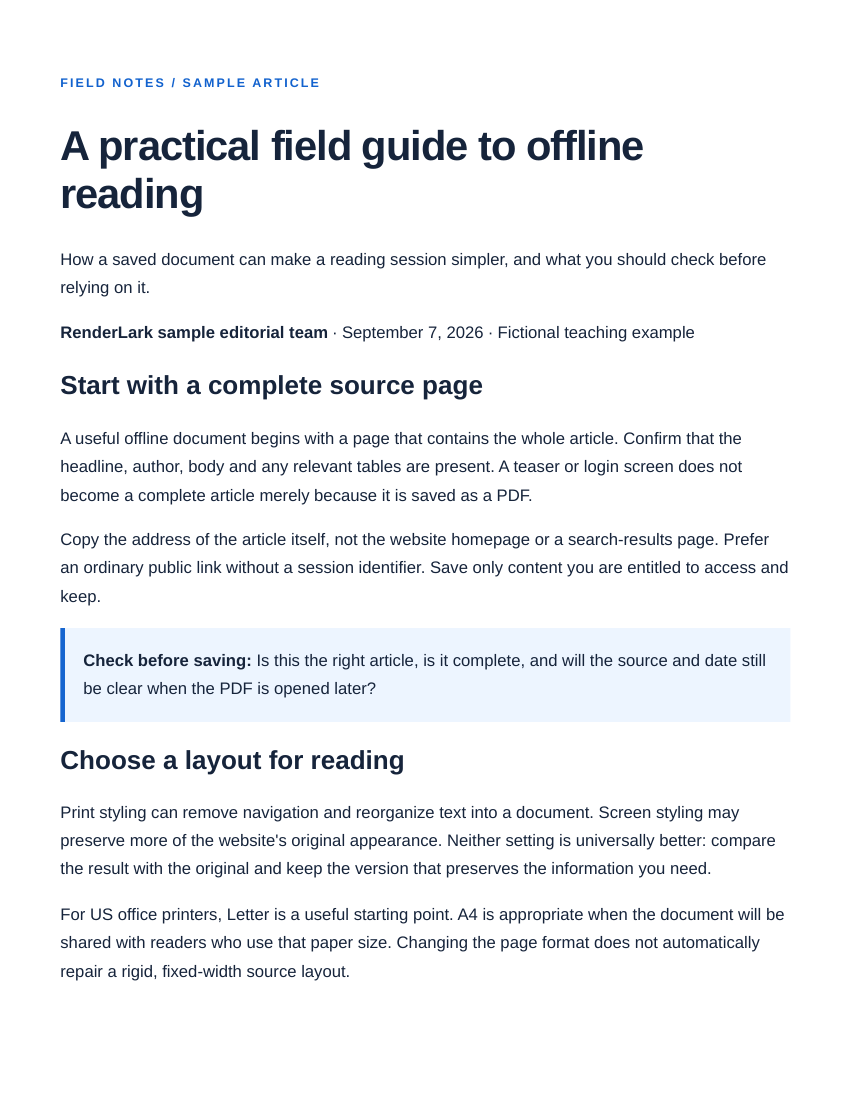 Open the complete reference PDF ↗
Reference output generated September 7, 2026 from our fictional teaching page using the settings above. Preview shows page one; open the PDF to inspect every page. These saved public examples are separate from temporary customer downloads.
Choose the URL of the page you actually need
Open the page in your browser and check its title and content. Copy the page's own address rather than the address of a search result, a category listing or a site's homepage. A link should start with https:// or http://. An address such as localhost or a file on your computer is not a public webpage.
For this walkthrough, use the fictional reading-guide page shown below. It has ordinary selectable text, a navigation bar and an explicit page break in its print stylesheet. That gives you visible details to check instead of judging success only by a download button. No real customer data or third-party copyrighted article is needed to try the process.
Choose settings before starting the conversion
Letter portrait is a useful starting point for a text document intended for US office paper. A4 is also available. Print media asks the page to use its print stylesheet; Screen media uses its screen styling. On this sample, Print mode removes the top navigation. On another website, the difference depends on the styles its publisher has written.
Background graphics controls whether background colors and images are painted. Leave it enabled for this example so the blue note boxes remain visible. A page's own CSS page-size rules may take precedence over the requested paper format. If changing Letter to A4 appears to do nothing, inspect the source page's print rules rather than repeatedly submitting the same request.
Download, compare and keep a useful filename
Click Generate PDF once and let the queued job finish. When Your PDF is ready appears, download the file and open it in a PDF reader. Compare the headline, middle content and final marker with the original. You can also use the saved reference PDF on this page to see what this controlled example produced; external websites can behave differently.
Rename the download to something descriptive, such as offline-reading-guide-2026-09-07.pdf, and save it in your own folder. The filename does not prove the date of the source content, so preserve the source URL and relevant publication date separately when you need that context. Temporary render links are not permanent archives or public document-hosting URLs.
Further reading
Common questions
Does a URL-to-PDF converter need my browser to stay open?
Rendering happens on the server after the request is accepted. Keep the result tab open to get the download link. Closing it is not the same as cancelling the job.
Can I convert a page that needs a login?
The public URL converter does not inherit your browser cookies or login. It may see a login screen instead. Do not remove access controls from private documents to make conversion work.
Will the PDF update when the website changes?
No. It is a snapshot of the page at rendering time. Run a new conversion when you need a newer version.
Need more conversions? See available plans or create an account. The walkthrough above covers conversion itself.