Why is my URL-to-PDF export blank, missing images or cut off?
Diagnose incomplete webpage PDFs with a known-good example: distinguish login screens, print CSS, wide layouts and missing resources before retrying the URL.
By the RenderLark team · 6 min read · Updated
First render a known-good public page. If that works, check the failing URL's public access, Print versus Screen styling, orientation and external resources. Repeating the same request does not fix a login wall, hidden print content or an oversized table.
Convert this URL, step by step
https://renderlark.com/samples/comparison-table.html
- Open the original example and copy its complete URL from the address bar.
- Paste the URL into RenderLark's Public page URL field. The test button below fills this in for you; it does not submit a render.
- Open Advanced options and check the paper size, orientation and media settings listed below. Keep background graphics enabled for these examples.
- Click Generate PDF once. Wait until Your PDF is ready appears, then click Download PDF.
- Open the downloaded file and compare it with the original using this guide's checks. Save it to your own storage; the live download link is temporary.
- Paper
- Letter
- Orientation
- Landscape
- Media
- Background graphics
- On
Fills the example and settings. You review them and click Generate PDF; nothing is rendered automatically.
Original page and actual PDF result
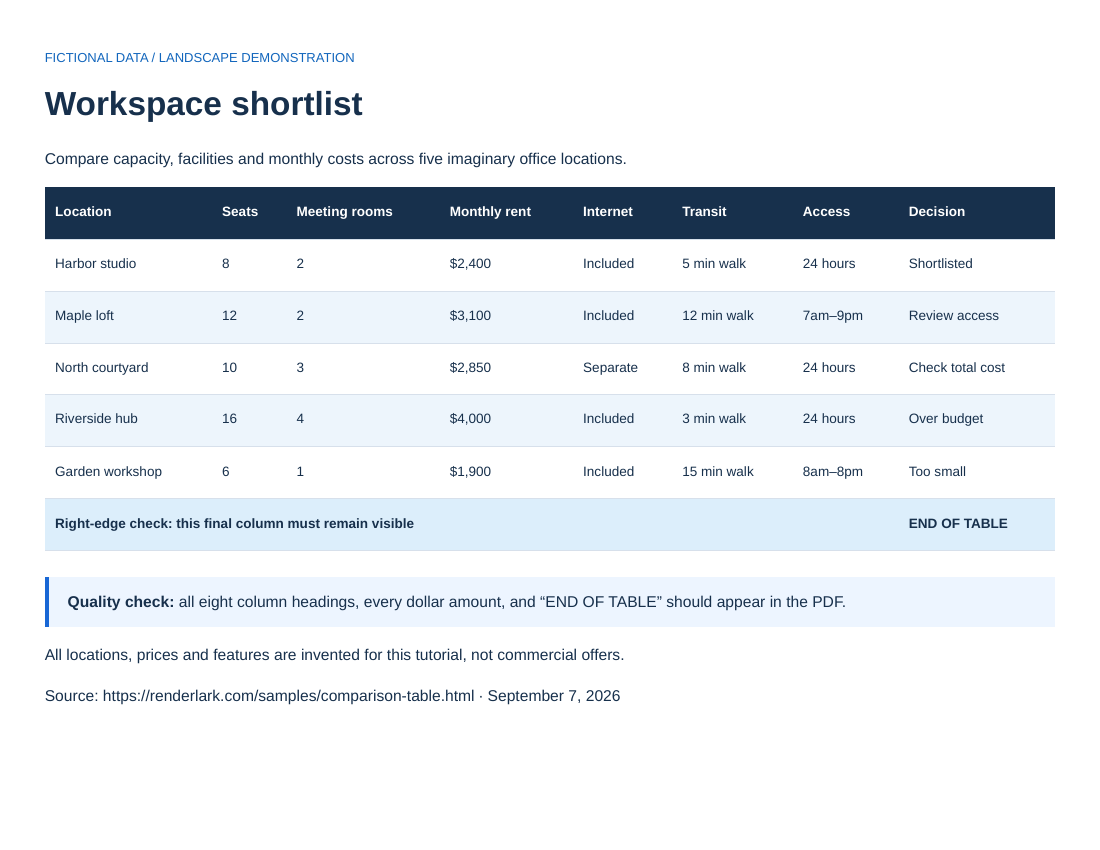
Use the landscape comparison as a control: all eight columns should appear. Then change only the setting relevant to your own page's problem; do not treat a valid PDF download as proof of complete content.
Start with the HTML page.
https://renderlark.com/samples/comparison-table.html
Open the original in a separate tab. Compare its headings, table edges, images and final lines with the PDF alongside it.
This public teaching page uses fictional content so you can test without uploading customer data.
 Open the complete reference PDF ↗
Reference output generated September 7, 2026 from our fictional teaching page using the settings above. Preview shows page one; open the PDF to inspect every page. These saved public examples are separate from temporary customer downloads.
Separate a failed request from an incomplete document
An error message, a job that never completes and a PDF with missing content are different problems. If RenderLark reports a failure, read the displayed message and check the public status page. If the PDF downloads but looks wrong, first open it and identify exactly what is absent: all text, one image, the final paragraphs or the right edge of a table.
Use the fictional comparison table as a control, with the settings shown here. A successful control demonstrates that this simple public source can be fetched and rendered. It does not prove the other URL is accessible or that its layout is supported. Compare the failing page in a signed-out browser as a helpful clue, while remembering that the server can still receive different regional or anti-bot content.
Blank text, cookie dialogs and login screens
If the PDF contains a login prompt or bot challenge, it may be faithfully rendering the response that the website supplied. The URL converter does not borrow your browser session. Do not remove access controls, expose a private invoice or put credentials in a public query string to work around this. Use an authorized backend workflow for sensitive documents.
If the document is mostly blank but the public source is visible, compare Print and Screen media. A site's print stylesheet may hide a wrapper or leave text in an unsuitable color. JavaScript-only pages can also depend on a click, a slow request or client state that is absent during rendering. For a page you control, a stable server-rendered or print-friendly view is easier to diagnose than an interactive dashboard.
Clipped columns, missing images and incomplete endings
For a cut-off right edge, try landscape orientation and check whether the source table has a fixed width or a scroll container. Our sample provides an END OF TABLE marker so you can immediately see whether its last column survived. A longer or wider real table may require source changes. Making text extremely small is not a good substitute for a readable layout.
For missing images, first check that the image URL is publicly reachable and does not depend on cookies. Enable background graphics if the missing element is a CSS background, but do not expect that switch to repair a failed network request. For a truncated article, check for lazy loading, infinite scrolling or multiple source pages. After making a focused change, render once more and compare the specific missing detail instead of repeatedly downloading the same incomplete output.
Further reading
Common questions
Why does the PDF show a login page?
RenderLark accesses the URL from its server, without your personal browser login. Keep private data protected and use an authorized integration rather than making the page public.
Should I keep retrying a visually incorrect PDF?
Not unchanged. First identify what differs from the source. Retries can help selected temporary failures, but do not correct the source layout or supply missing authentication.
Does turning on background graphics fix every missing image?
No. It affects background painting. A missing image can instead result from a blocked URL, a failed resource request or content that was never loaded.
Need more conversions? See available plans or create an account. The walkthrough above covers conversion itself.