How to convert a wide web table to a landscape PDF
Export a comparison table from its URL using landscape orientation. Follow a worked example and check that the rightmost columns and totals are not clipped.
By the RenderLark team · 5 min read · Updated
For a wide table, paste the table page's URL, choose Letter or A4, enable landscape orientation and try Print media. Download the PDF and inspect the rightmost column; rotating paper does not automatically fix an oversized or scroll-only source table.
Convert this URL, step by step
https://renderlark.com/samples/comparison-table.html
- Open the original example and copy its complete URL from the address bar.
- Paste the URL into RenderLark's Public page URL field. The test button below fills this in for you; it does not submit a render.
- Open Advanced options and check the paper size, orientation and media settings listed below. Keep background graphics enabled for these examples.
- Click Generate PDF once. Wait until Your PDF is ready appears, then click Download PDF.
- Open the downloaded file and compare it with the original using this guide's checks. Save it to your own storage; the live download link is temporary.
- Paper
- Letter
- Orientation
- Landscape
- Media
- Background graphics
- On
Fills the example and settings. You review them and click Generate PDF; nothing is rendered automatically.
Original page and actual PDF result
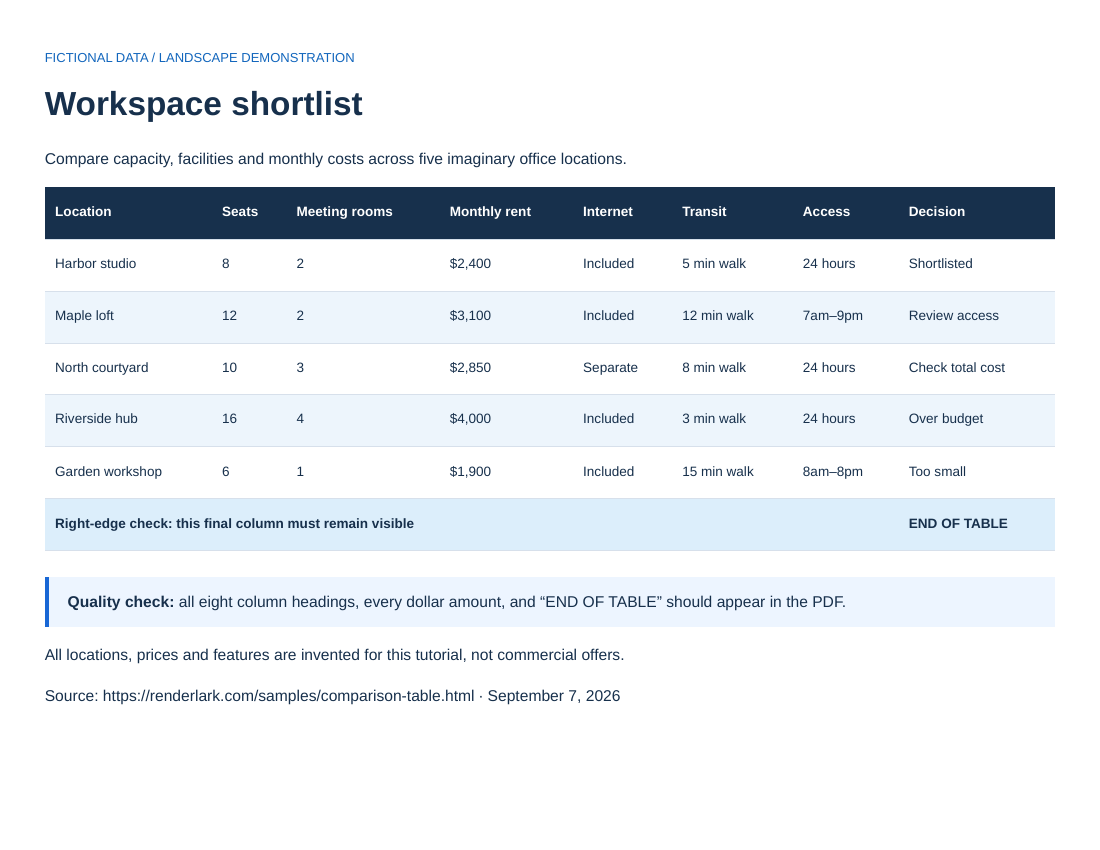
All eight headings and five workspace rows should be visible. The final right-hand cell must read END OF TABLE. Sample prices and locations are invented.
Start with the HTML page.
https://renderlark.com/samples/comparison-table.html
Open the original in a separate tab. Compare its headings, table edges, images and final lines with the PDF alongside it.
This public teaching page uses fictional content so you can test without uploading customer data.
 Open the complete reference PDF ↗
Reference output generated September 7, 2026 from our fictional teaching page using the settings above. Preview shows page one; open the PDF to inspect every page. These saved public examples are separate from temporary customer downloads.
Start with a visible, complete table
A good table export begins with all the relevant rows and columns available to the renderer. A page with a search box, paging controls or horizontally virtualized cells may show only part of its data at any moment. Saving that view as PDF does not perform a database export, click through pages or assemble hidden results.
Our example is a fictional workspace comparison with eight columns and five rows. Open it first and find the Decision column on the far right. If your browser window is narrow, scroll the table horizontally to inspect it. The source includes a print rule that lets the whole table take part in the printed layout instead of leaving it inside a clipped scrolling panel.
Set landscape and make one controlled conversion
Paste the example URL into RenderLark, expand Advanced options, choose Letter, turn on landscape orientation and select Print media. Keep background graphics on so the dark header and alternating row shading remain visible. The conversion button on this guide fills these settings in, but you still review them and click Generate PDF yourself.
Landscape gives the page more horizontal space. A4 and Letter have different dimensions, and the page's own CSS can also influence paper sizing. Do not assume an orientation switch will fix every report: a table with a large minimum width, an overflowing cell or an unbreakable URL may remain too wide. If you own the source, shorten labels, allow appropriate wrapping or create a dedicated print view.
Validate columns, amounts and page boundaries
Download the PDF, zoom to a readable level and compare every header against the original. Look specifically for Decision and the END OF TABLE marker, then check the dollar amounts and the last workspace row. A PDF file can be technically valid even when the right edge of a table is cut off, so this comparison is part of the workflow.
For longer real reports, also inspect where rows cross pages. Source CSS can repeat table headings and discourage splitting individual rows, but a single row taller than a page still needs a different layout. This sample is a one-page comparison, not proof that every dashboard will export correctly. Keep the original source and a known-good PDF together when approving a report template.
Further reading
Common questions
Will landscape always fit every column?
No. A fixed-width table can still exceed the printable area. Use a print-friendly source layout or an API scale setting for a page you control, then check text readability.
Can I export data hidden inside a dashboard?
A public URL conversion does not carry your dashboard login or click through tabs. Use the dashboard's authorized export feature or a controlled backend integration for private reports.
Need more conversions? See available plans or create an account. The walkthrough above covers conversion itself.