How to save a product page as a PDF with its image and specifications
Turn a public product URL into a PDF for comparison or reference. Check the image, model, displayed price and specifications against the original page.
By the RenderLark team · 5 min read · Updated
Open the exact public product URL, paste it into RenderLark and generate a portrait PDF. Check the model, image, price and final specification row after downloading. A server-rendered page may differ from your logged-in shopping session or selected product variant.
Convert this URL, step by step
https://renderlark.com/samples/product-sheet.html
- Open the original example and copy its complete URL from the address bar.
- Paste the URL into RenderLark's Public page URL field. The test button below fills this in for you; it does not submit a render.
- Open Advanced options and check the paper size, orientation and media settings listed below. Keep background graphics enabled for these examples.
- Click Generate PDF once. Wait until Your PDF is ready appears, then click Download PDF.
- Open the downloaded file and compare it with the original using this guide's checks. Save it to your own storage; the live download link is temporary.
- Paper
- Letter
- Orientation
- Portrait
- Media
- Background graphics
- On
Fills the example and settings. You review them and click Generate PDF; nothing is rendered automatically.
Original page and actual PDF result
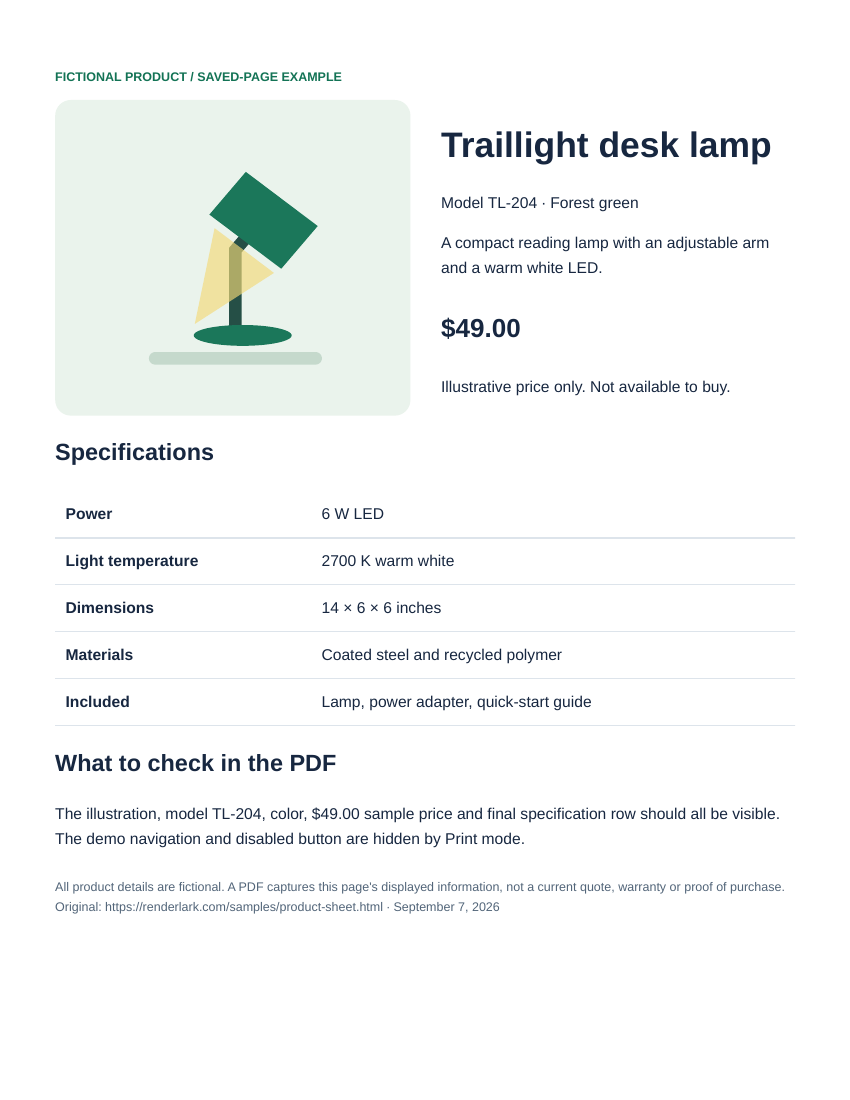
The reference keeps the green lamp illustration, TL-204 model, $49.00 fictional price and all five specification rows. The demonstration navigation and disabled button are hidden in Print mode.
Start with the HTML page.
https://renderlark.com/samples/product-sheet.html
Open the original in a separate tab. Compare its headings, table edges, images and final lines with the PDF alongside it.
This public teaching page uses fictional content so you can test without uploading customer data.
 Open the complete reference PDF ↗
Reference output generated September 7, 2026 from our fictional teaching page using the settings above. Preview shows page one; open the PDF to inspect every page. These saved public examples are separate from temporary customer downloads.
Capture the exact product, not a category page
Product research often starts with many open tabs. Before saving one, check that the address belongs to the individual item and that the model and variant are clear. A category URL may show a changing list rather than the product you intended. Avoid copying private checkout links, account pages or URLs containing customer or session information.
The worked example uses a completely fictional desk lamp. It has a single model, a visible price, an inline illustration and a specification table. There is no shopping cart, real merchant or purchase action. These stable details make it possible to compare the original with the saved PDF without relying on an external store staying unchanged.
Generate the product sheet and compare the styling
Use Letter portrait, Print media and background graphics enabled for the example. Click Generate PDF, wait for completion and download it. The source's print stylesheet hides its navigation and disabled demo button while keeping the illustration and specification table. Open the saved reference PDF alongside the original page to check those deliberate differences.
On a real store, try Screen media if the publisher's Print mode hides important details. Change one setting at a time and compare the results. Lazy-loaded galleries, cookie dialogs and region selection can affect what a server sees. A public URL conversion does not click thumbnail galleries, accept banners or select a variant using your existing browser state.
Save a useful reference, not an assumed quotation
Check the product model, selected color, displayed price, image and last specification row. For the demonstration, look for TL-204, Forest green, $49.00 and the included power adapter. A missing image is a content problem even if the file opens successfully. If a store uses a login or bot challenge, a resulting PDF may contain that screen instead of the item.
Record the source URL and capture date with your research notes. Treat the saved page as a reference snapshot, not a current quotation, warranty, order confirmation or proof of purchase. Share copies only when you have the right to do so. For a client comparison, inspect every saved product page individually rather than assuming several successful downloads all contain the intended products.
Further reading
Common questions
Will the PDF keep my selected size or color?
Only if that selection is represented in the URL or in the page state visible to the renderer. A choice stored only in your browser session is not carried over automatically.
Is the saved page proof of the current price?
No. It is a snapshot of displayed information. Prices, taxes, availability and regional offers can change or differ from what your browser shows.
Need more conversions? See available plans or create an account. The walkthrough above covers conversion itself.