How to save a long web article as a readable PDF
Convert an article URL into a readable PDF, compare Print and Screen media, check page breaks, and make sure the final paragraphs survive the export.
By the RenderLark team · 6 min read · Updated
For a readable article PDF, start with the article's public URL, use portrait orientation and try Print media. After downloading, inspect both the first and last pages: a successful render can still contain only a teaser or omit lazily loaded content.
Convert this URL, step by step
https://renderlark.com/samples/reading-guide.html
- Open the original example and copy its complete URL from the address bar.
- Paste the URL into RenderLark's Public page URL field. The test button below fills this in for you; it does not submit a render.
- Open Advanced options and check the paper size, orientation and media settings listed below. Keep background graphics enabled for these examples.
- Click Generate PDF once. Wait until Your PDF is ready appears, then click Download PDF.
- Open the downloaded file and compare it with the original using this guide's checks. Save it to your own storage; the live download link is temporary.
- Paper
- Letter
- Orientation
- Portrait
- Media
- Background graphics
- On
Fills the example and settings. You review them and click Generate PDF; nothing is rendered automatically.
Original page and actual PDF result
The sample has two deliberate reading sections. Print mode starts the second section on a fresh page and hides the navigation. Verify that the end marker is present, not just the first headline.
Start with the HTML page.
https://renderlark.com/samples/reading-guide.html
Open the original in a separate tab. Compare its headings, table edges, images and final lines with the PDF alongside it.
This public teaching page uses fictional content so you can test without uploading customer data.
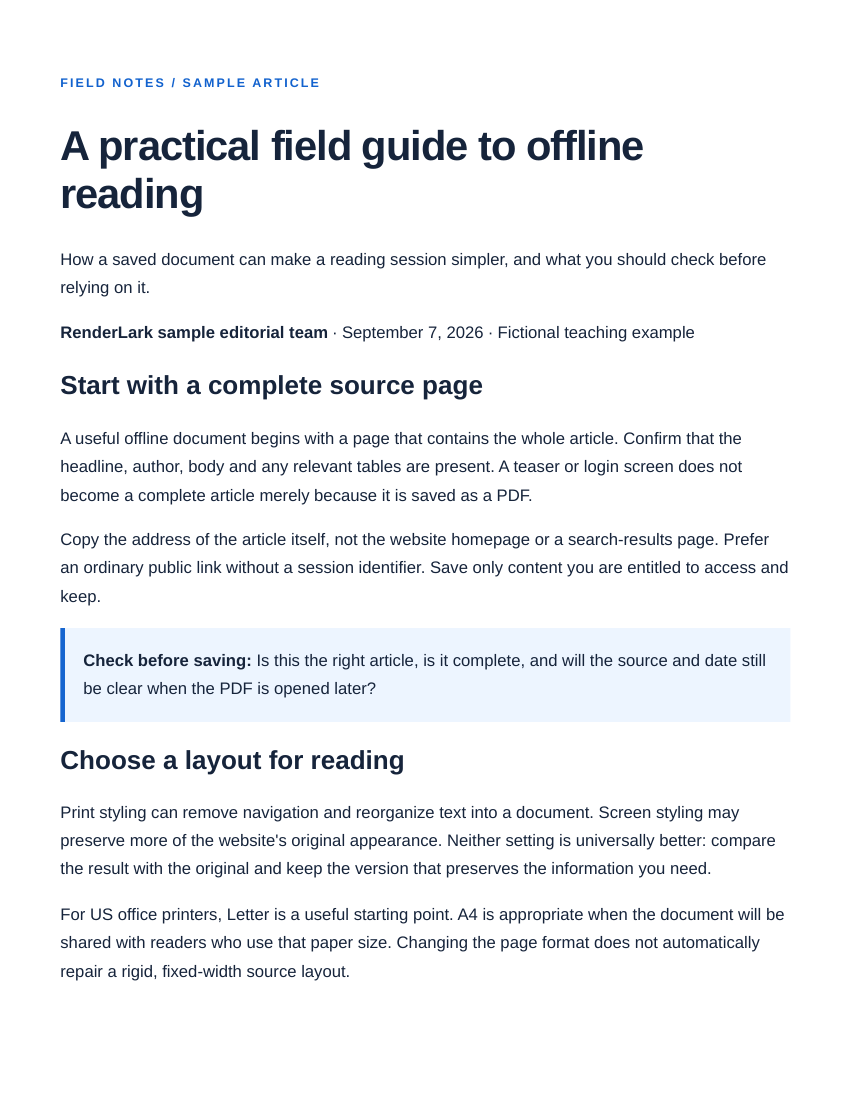 Open the complete reference PDF ↗
Reference output generated September 7, 2026 from our fictional teaching page using the settings above. Preview shows page one; open the PDF to inspect every page. These saved public examples are separate from temporary customer downloads.
Use the complete article, not a preview
Before rendering, confirm that the URL leads to the entire article. Some websites show a short preview before asking the reader to subscribe, and others split a story across several URLs. The renderer can only capture the content it can actually access. It cannot use a subscription session that exists only in your personal browser.
If the publisher offers a public print view or single-page version, that may be a better source than an interactive reader. Use only a view you are entitled to access; do not try to bypass a paywall. For the worked example, our fictional reading guide is intentionally complete at one public URL and includes a clear last-paragraph marker.
Compare Print and Screen without changing everything at once
Generate the sample using Letter, portrait, Print media and background graphics enabled. The top navigation is absent from the saved PDF because this page's print rules hide it. The second section starts on a new page because the source requests that break. These are source-page behaviors, not content-removal features added by the converter.
If your own article looks worse in Print mode, keep the same paper settings and change only media to Screen for a second comparison. Screen mode can preserve a publisher's colors and cards, but it may also retain menus, large spacers or sticky elements. Compare body text width, image captions and reading order rather than assuming either option always gives a cleaner document.
Check the content across every page
Open the finished PDF and look for the first headline, a distinctive middle paragraph and the final sentence. In this example, search for ‘The offline reading checklist is complete.’ If it is missing, the beginning looking correct is not enough. Inspect page boundaries for a heading separated from its text or a figure missing its caption.
A PDF is a paginated document, not one endless screenshot. Long content normally spans multiple pages. If a website uses a fixed-height scrolling box, however, the full article may not participate in normal page layout. Choose a better printable source or adjust the page if you control it. Download and retain the final file locally for offline reading; a temporary download link is not a substitute for that saved copy.
Further reading
Common questions
Does RenderLark remove advertisements automatically?
No. Print media uses the source website's print stylesheet. It can hide elements only when that stylesheet does so. This is not an automatic reader-mode or ad-removal tool.
Can I save an infinite-scroll article in full?
Not reliably through a basic URL conversion. Content that loads only after scrolling or clicking may be absent. Prefer the publisher's complete, printable version and inspect the final PDF.
Need more conversions? See available plans or create an account. The walkthrough above covers conversion itself.